Set up your first map in spaciv. Learn how background images, overlays, and foreground layers work, how to link a map to a property, and how maps connect your data to a physical space.
This guide explains what maps are in spaciv, how they are structured, and how to create one from scratch. Use it alongside the video and slides as a step-by-step reference.
What you will need
Maps are visualisations that use an image as a base and let you layer your data on top of it. Instead of viewing your data as rows in a table, maps let you see it placed in a real spatial context.
You can use maps in two ways:
Scales and nesting
Maps in spaciv are not limited to floor plans. They can represent any scale of information:
Maps can also be nested inside each other. Start with a site plan, double-click a building to drill into its floor plan, and double-click again for more detail. You build the hierarchy once and navigate through it naturally.
Every map in spaciv is built from up to three image layers and a linked property. Two things are mandatory; the rest is optional.
Background image (mandatory)
The background image is the foundation of your map. It is the image you want to see underneath everything else — a floor plan, site plan, or any other spatial image.
It must be uploaded as an SVG file. Without a background image, there is nothing to place your data on.
Linked property (mandatory)
Every map must be linked to a property. This tells spaciv what kind of data the map is representing.
For example, if your map shows buildings, link it to the Building property. If it shows floors, link it to the Floor property.
When you select a tree property and set it to root, spaciv includes all values inside that property — so all buildings, all floors, or all rooms, depending on what you have linked.
Note: Root means all values. If you want to scope a map to a specific subset of data, select a specific child node instead of root.
Overlay (optional)
An overlay sits above the background image. Use it for pre-drawn spatial data like building outlines, room boundaries, or polygons imported as an SVG file. It sits precisely on top of the background.
Foreground image (optional)
A foreground image sits above everything else, including any polygons you draw on the map. It is useful for shading, design elements, or additional context that should always appear in front of your data.
Think of it as a transparent sheet placed over the top of the entire map.
Note: For this lesson, you only need a background image and a linked property. Overlay and foreground image are not required.
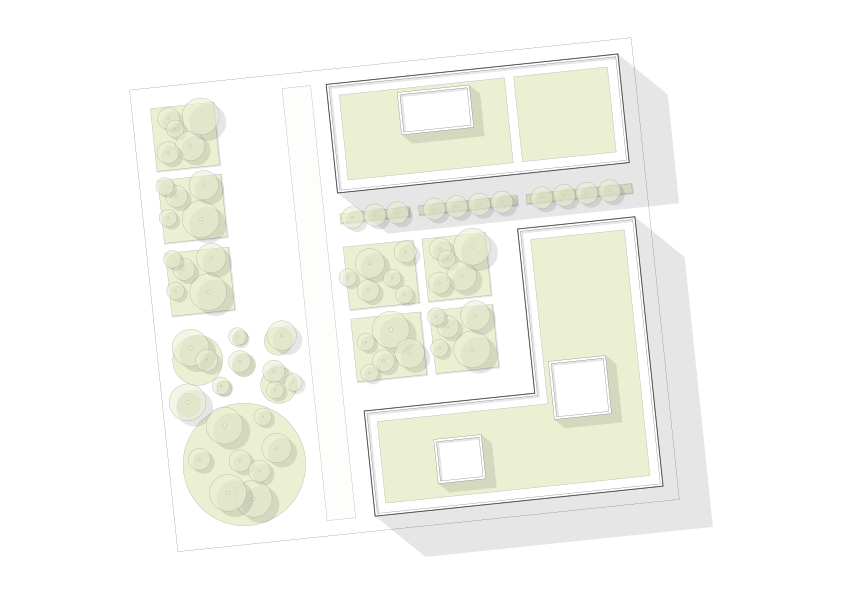
Here is how to create the Academy Level 2 Site Plan map from this lesson.
The map is created but still empty. Now you need to add the background image and link a property.
Add the background image
Link a property
Save
Your map is now set up and saved in your account. It will be available to use as a visualisation inside your project in the next lesson.
4. Quick Reference
Mandatory
Optional
Property linking